
How to keep your account secure: password, two-step verification and devices
All the security settings for your user are on one screen: open the user menu and choose "My account".
How do I change my password?
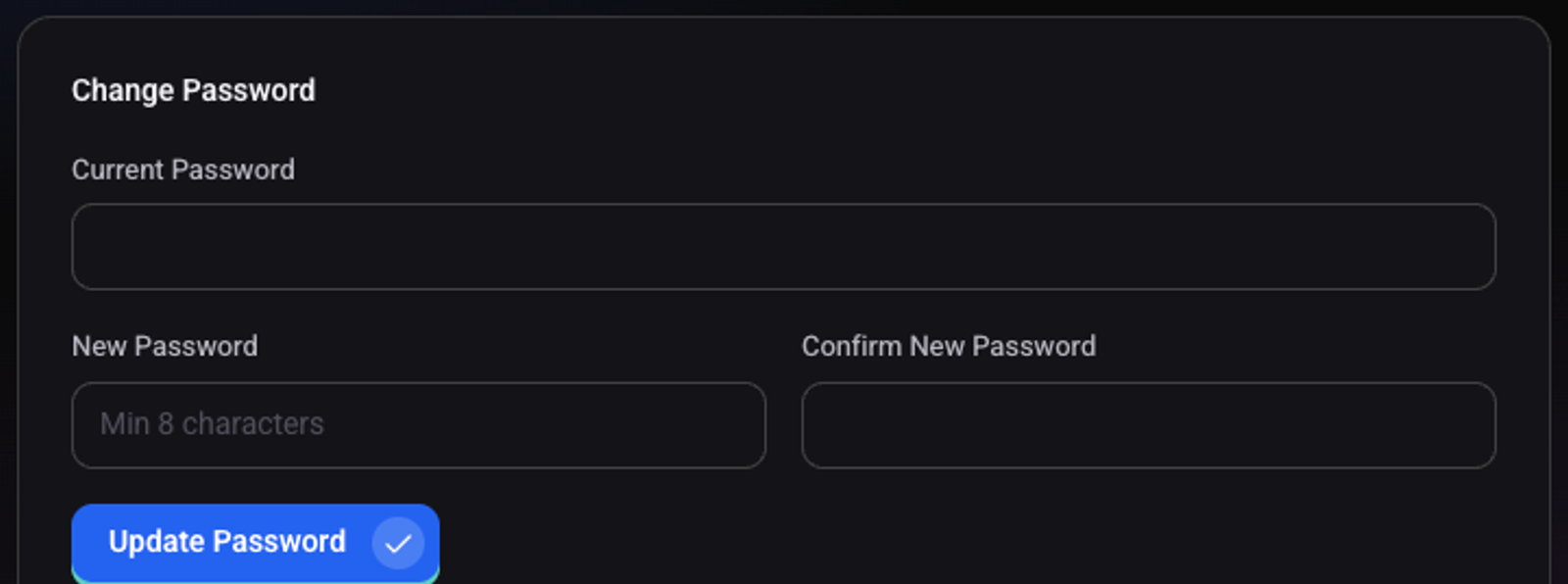
Under "Change Password" enter your "Current Password"
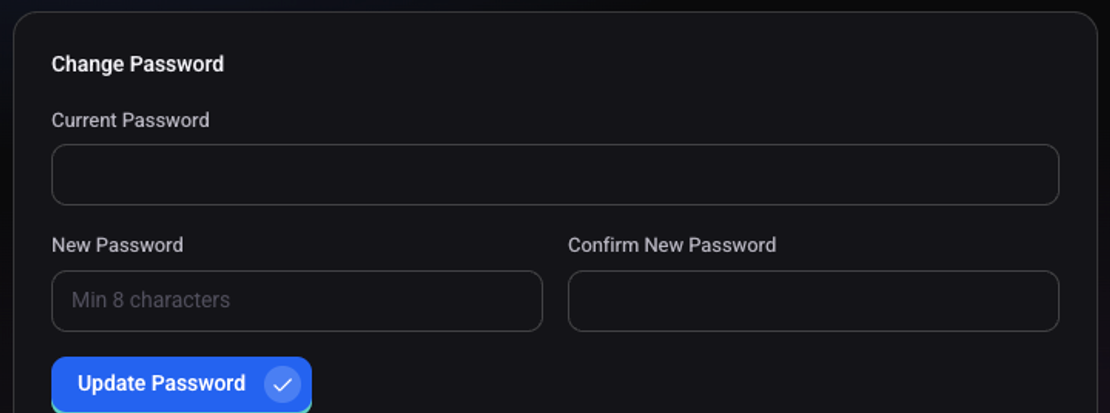
Enter the new password twice, at least 8 characters
Click "Update Password"
You see "Password updated", and all your other devices are signed out.
How do I turn on two-step verification?
Under "Two-step verification" click "Turn on two-step verification"
Install an authenticator app on your phone and scan the code shown
You can also enter the key in the app by hand.
Enter the 6-digit code the app shows and click "Turn on"
You see "Two-step verification is on." From now on every sign-in also asks for a code from the app.
How do I see and sign out signed-in devices?
Under "Active sessions" you see every device and browser signed in to your account. "Revoke" signs out one device, and "Sign out of all other devices" keeps only the current one.

How do I change my email address?
Under "Profile" click "Change email", enter the new address and your current password, and click "Send confirmation". The email changes only after you click the link sent to the new address.
See also: how to invite team members, and what each role sees and how to create and manage API keys.