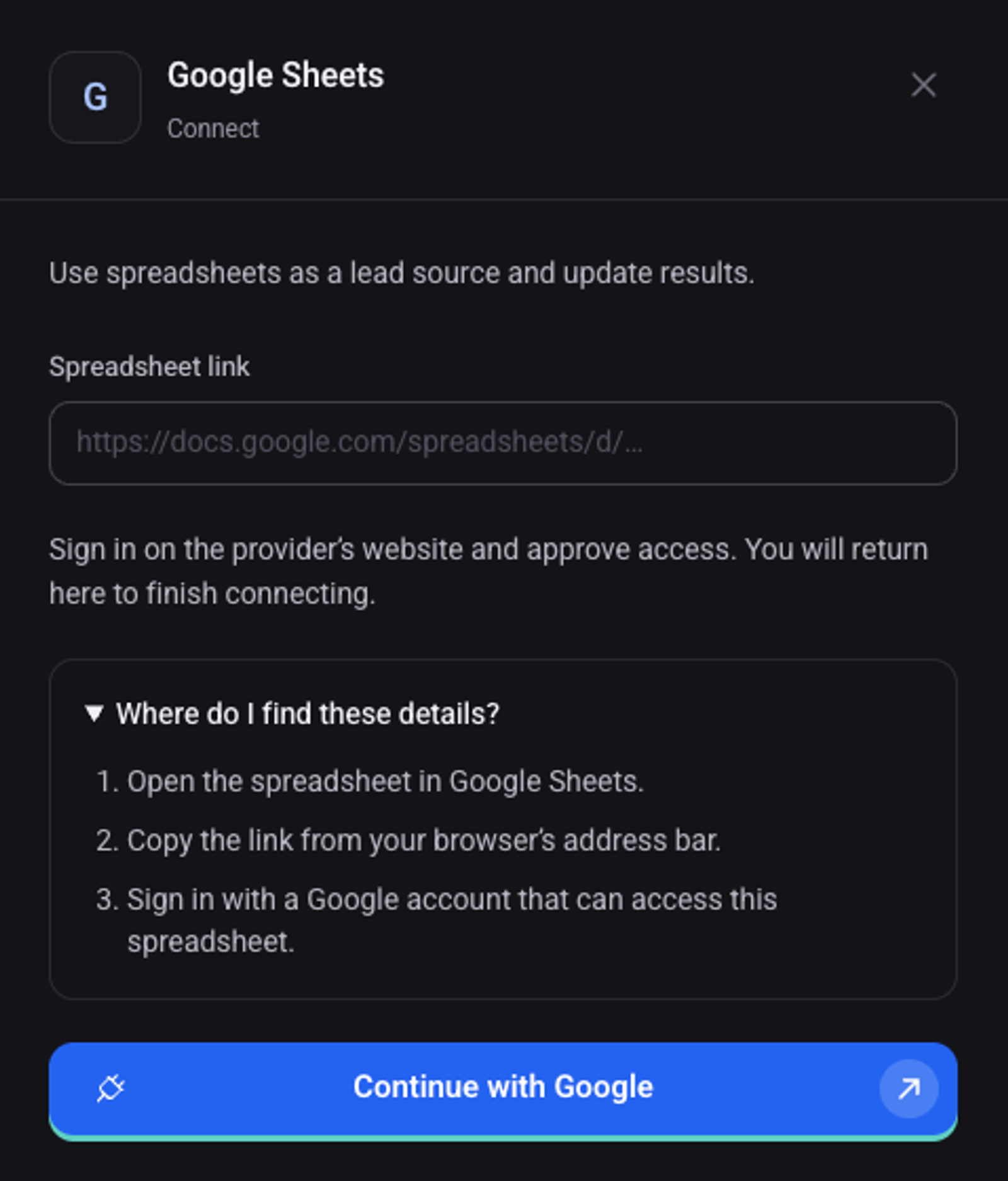
How to connect Google Sheets
Once a spreadsheet is connected, it can be a lead source, and the agent writes call results to it.
Open the user menu, choose "Workspace settings" and then "Integrations"
Go to the "Integration library" tab and click "Connect" on the Google Sheets card
Open the spreadsheet in Google Sheets and copy the link from the address bar
Back in Direnium, paste the link into the "Spreadsheet link" field
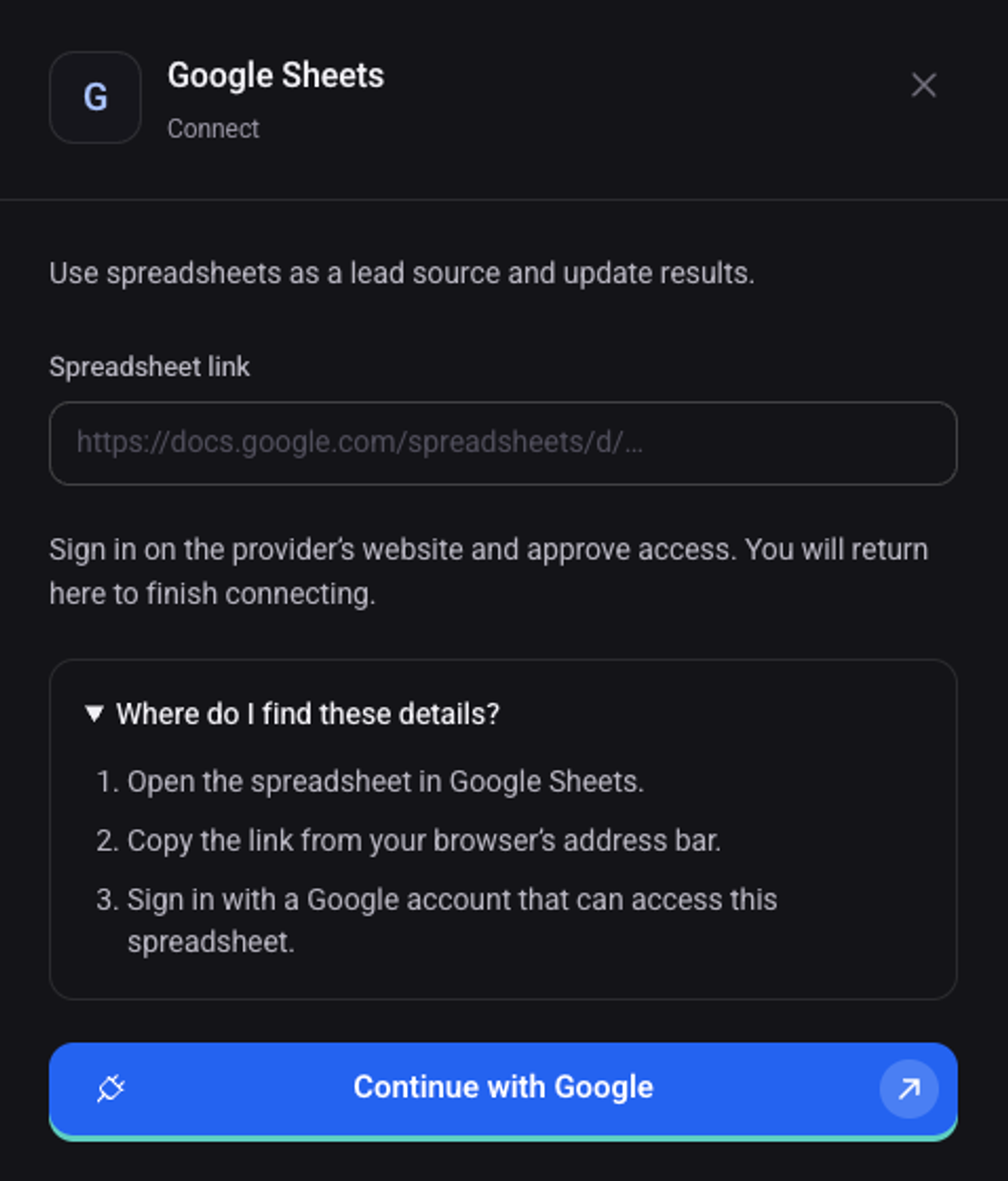
Click "Continue with Google", sign in with a Google account that can access the spreadsheet, and approve
The connection shows on the "My connections" tab with the status "Connected".