
How to invite team members, and what each role sees
Everyone on the team signs in with their own user. An admin invites the others and chooses a role for each.
Open the user menu, choose "Workspace settings" and then "Members"
Click "Invite"
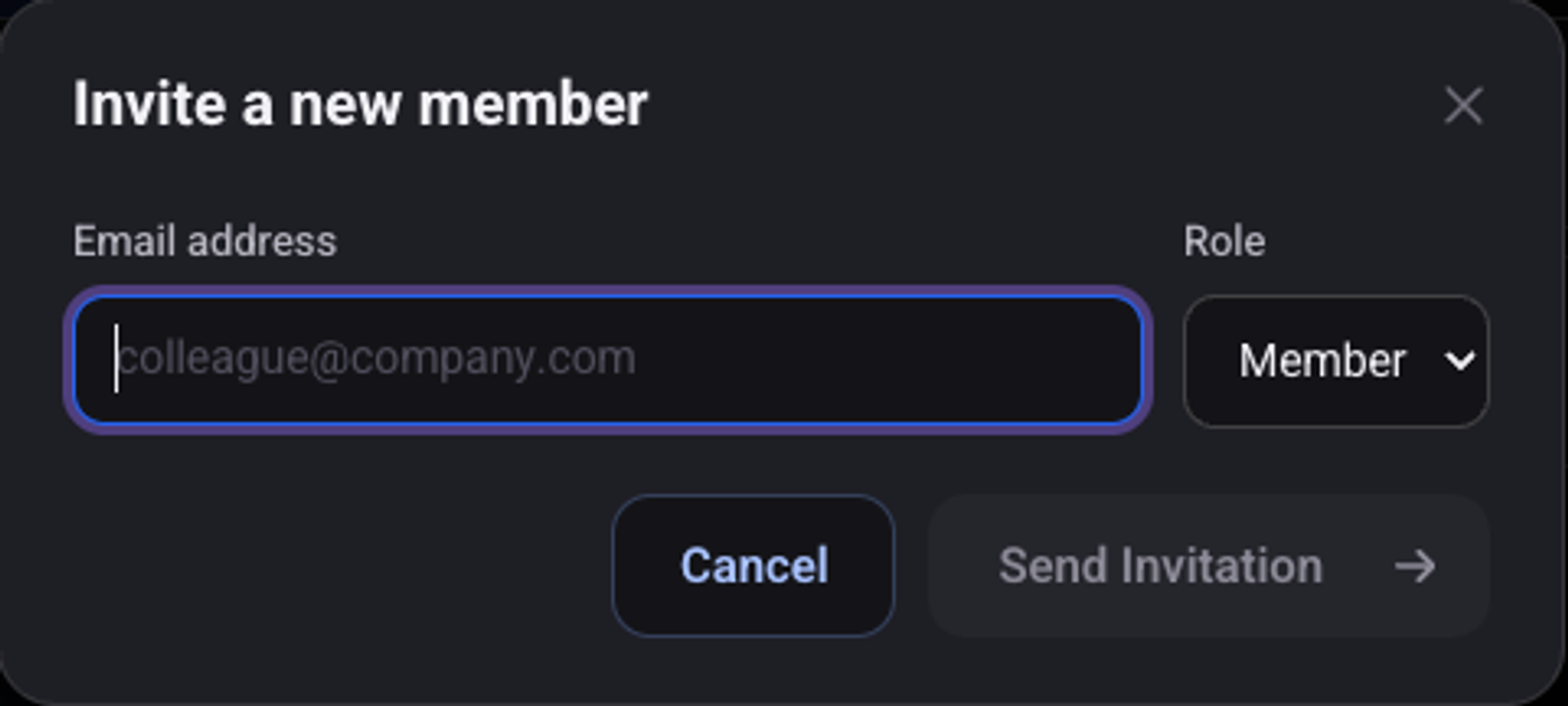
Enter the "Email address" and choose a "Role": "Member" or "Admin"
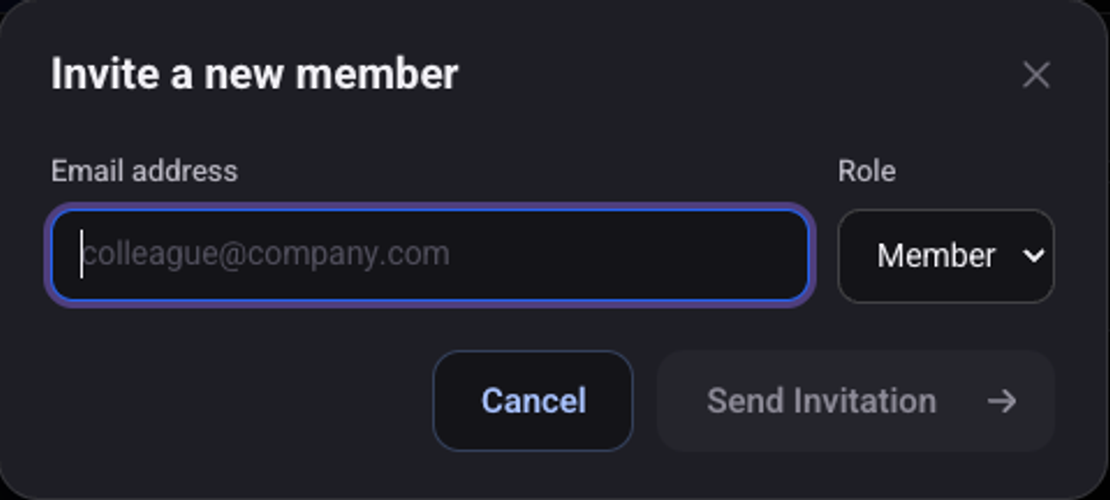
Click "Send Invitation"
The invitation shows under "Pending Invitations", with the date it expires.
The invited person clicks the link in the email, chooses a password and joins
Once they join, they show in the members list.
What does each role see?
- "Admin": sees and sets up everything: agents, knowledge, integrations, API keys, the team and the plan. Only an admin invites and removes users.
- "Member": works with customer conversations and contacts, with no access to agent settings or workspace settings.
How do I remove a user or cancel an invitation?
Next to the user's name click "Remove member" and confirm. Cancel an invitation that was not accepted yet with "Revoke invitation".
See also: how to keep your account secure and how to add test numbers.