
How to connect ChatGPT or Claude to Direnium
Once connected, you can ask ChatGPT or Claude about your agents and ask them to change things. The assistant never changes anything by itself: every change waits for your click.
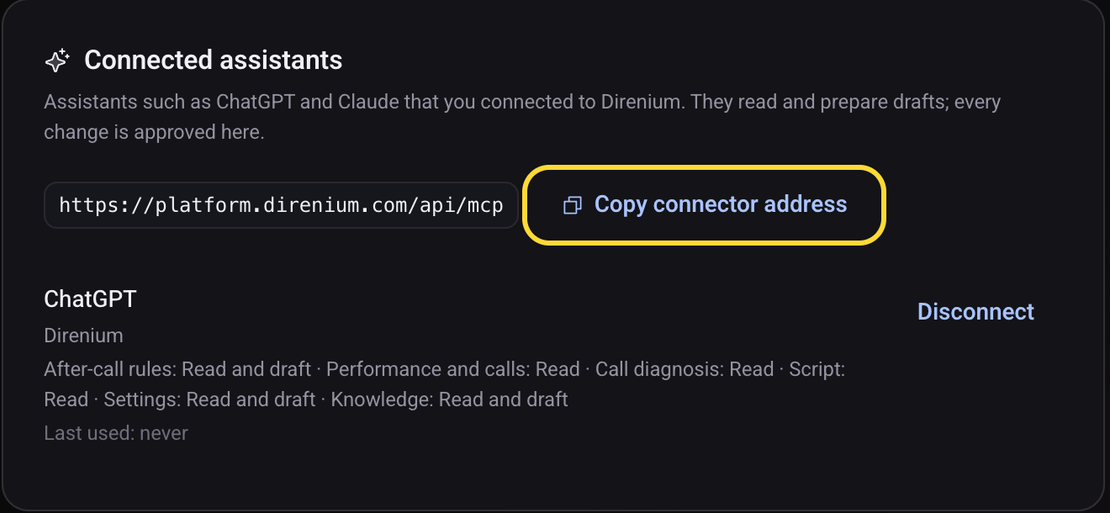
In Direnium, open the user menu, choose "My account", and under "Connected assistants" click "Copy connector address"
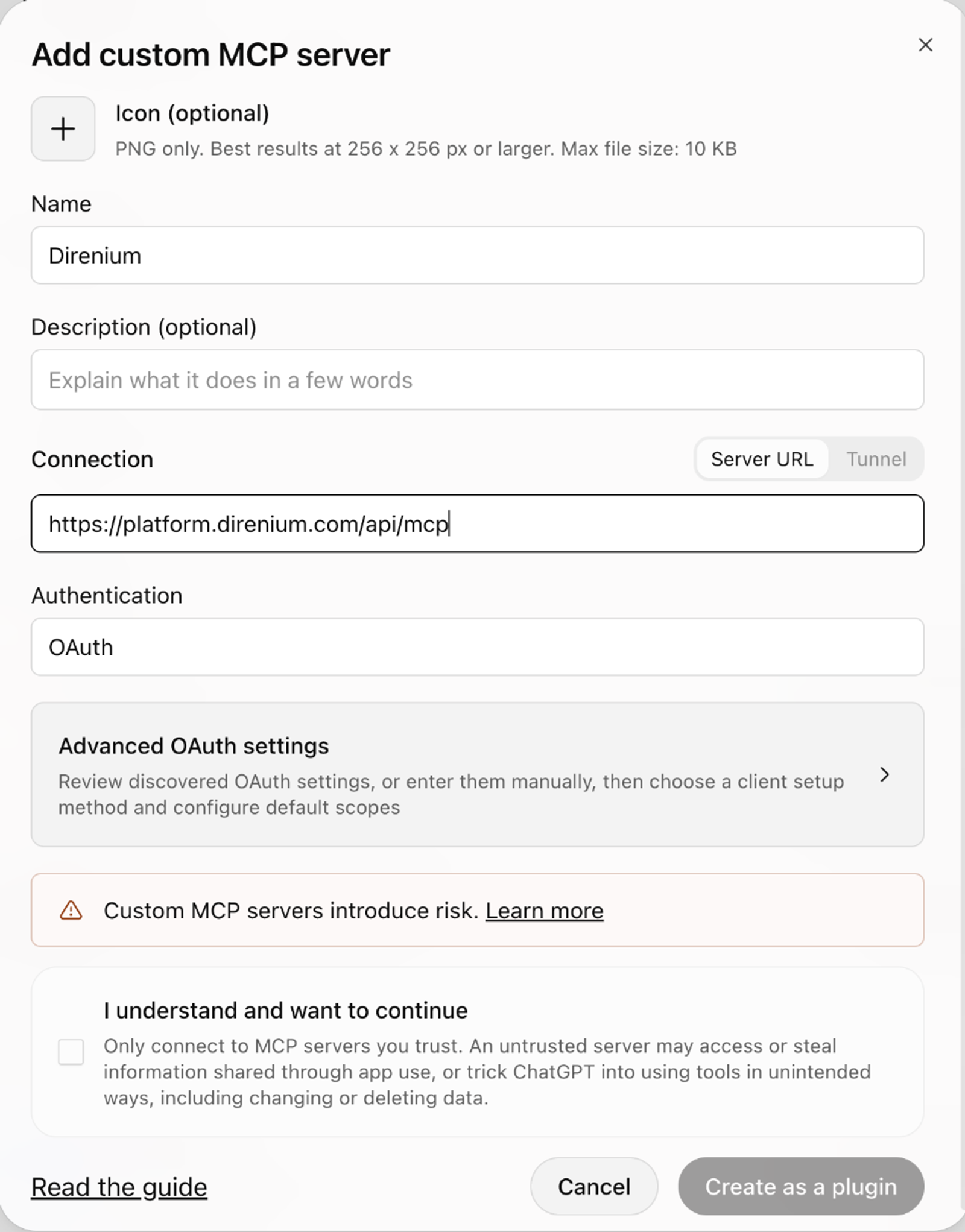
In ChatGPT, open "Plugins", click "Add" and choose "Add custom MCP server"
Type "Direnium" in "Name", paste the address under "Connection", and leave "Authentication" on "OAuth"
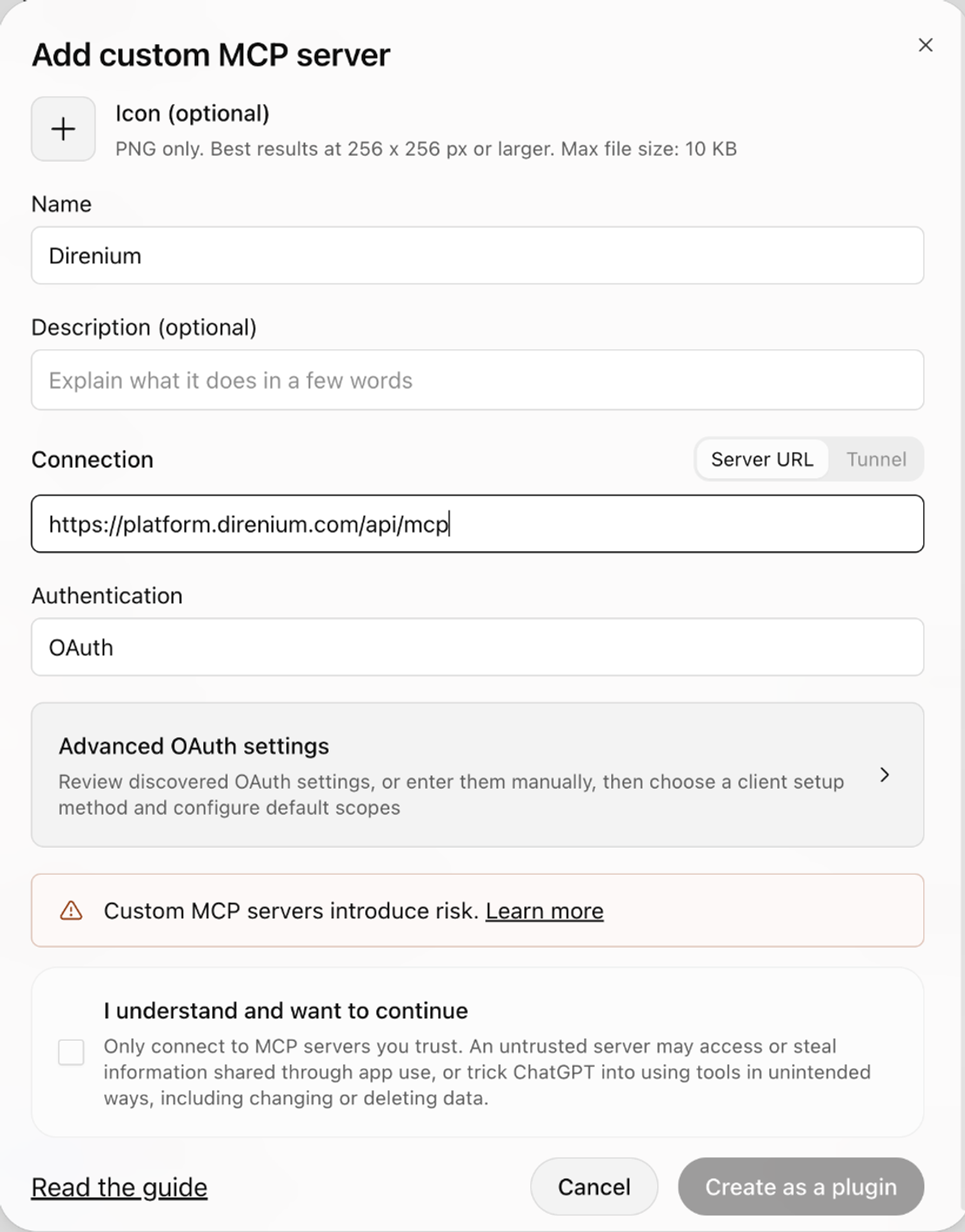
Tick "I understand and want to continue" and click "Create as a plugin"
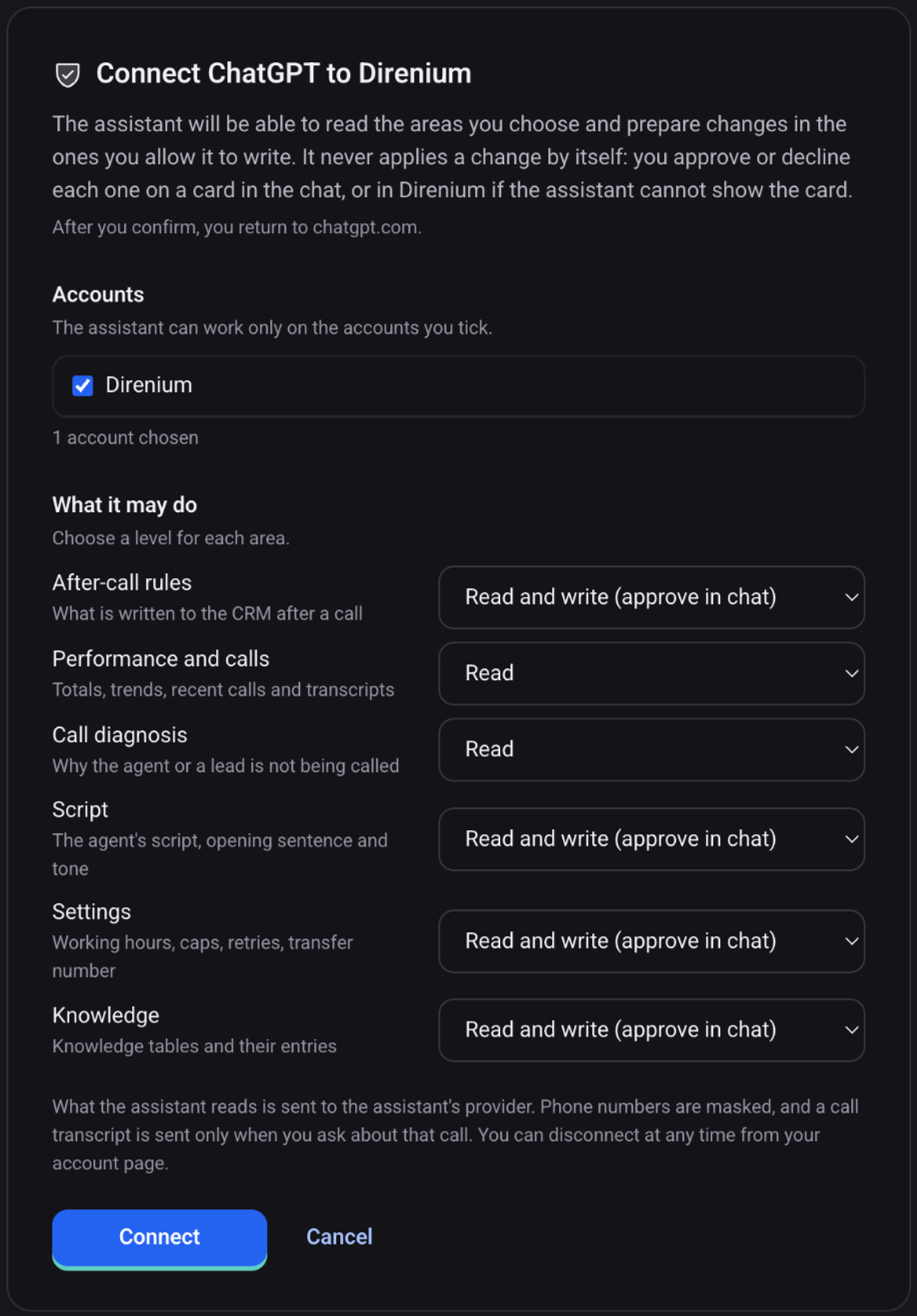
If ChatGPT asks you to confirm the connection, click "Connect Direnium". If you are not signed in to Direnium, you will be asked to sign in.
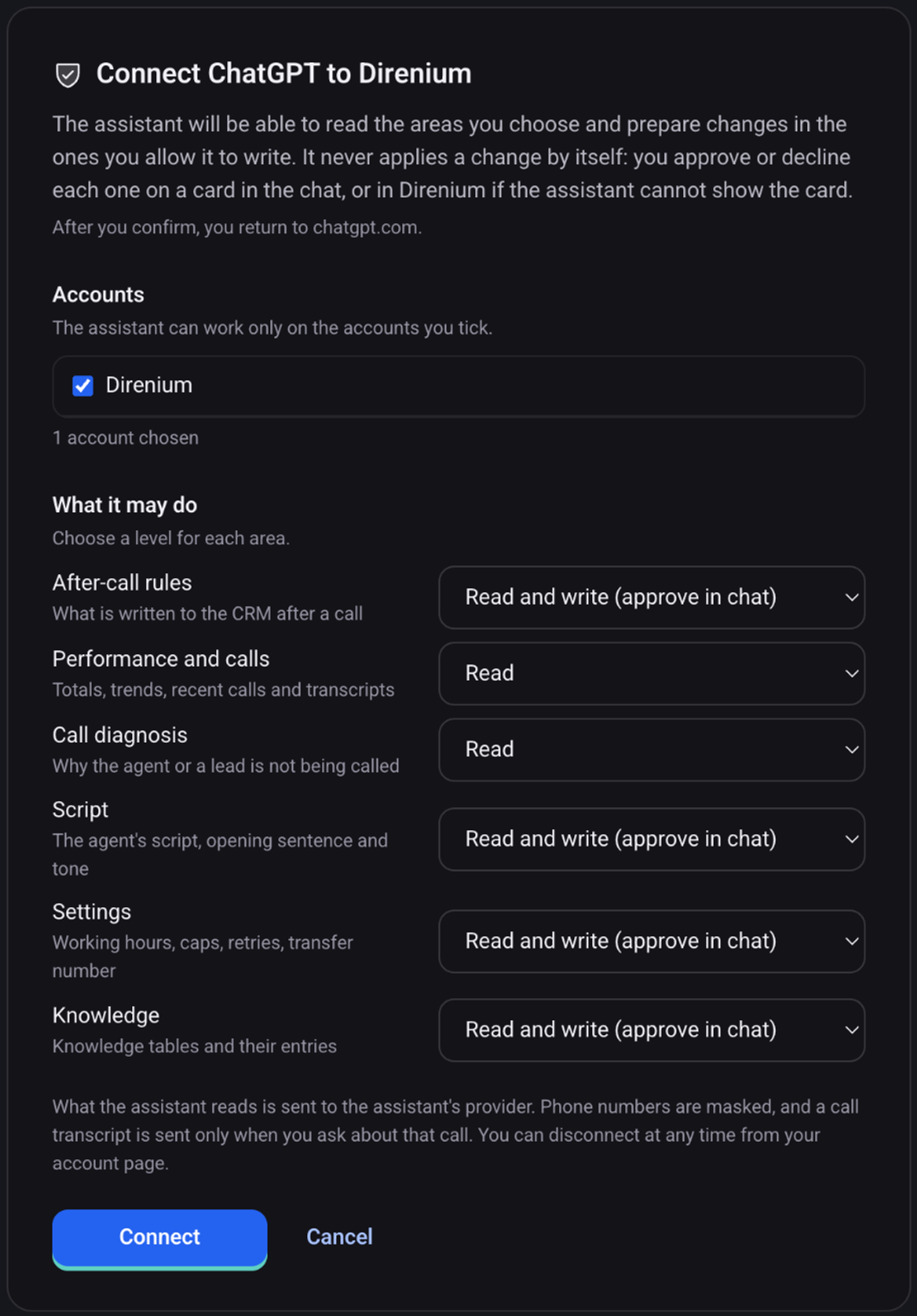
On Direnium's connect page, tick the accounts, check the level of each area and click "Connect"
Each area starts at the highest level you are allowed. "Read and write (approve in chat)" lets the assistant prepare changes that you approve in the chat. "Read" lets it only read.
In a new ChatGPT chat, pick Direnium under "Plugins" and ask, for example: "What are the agent's working hours?"
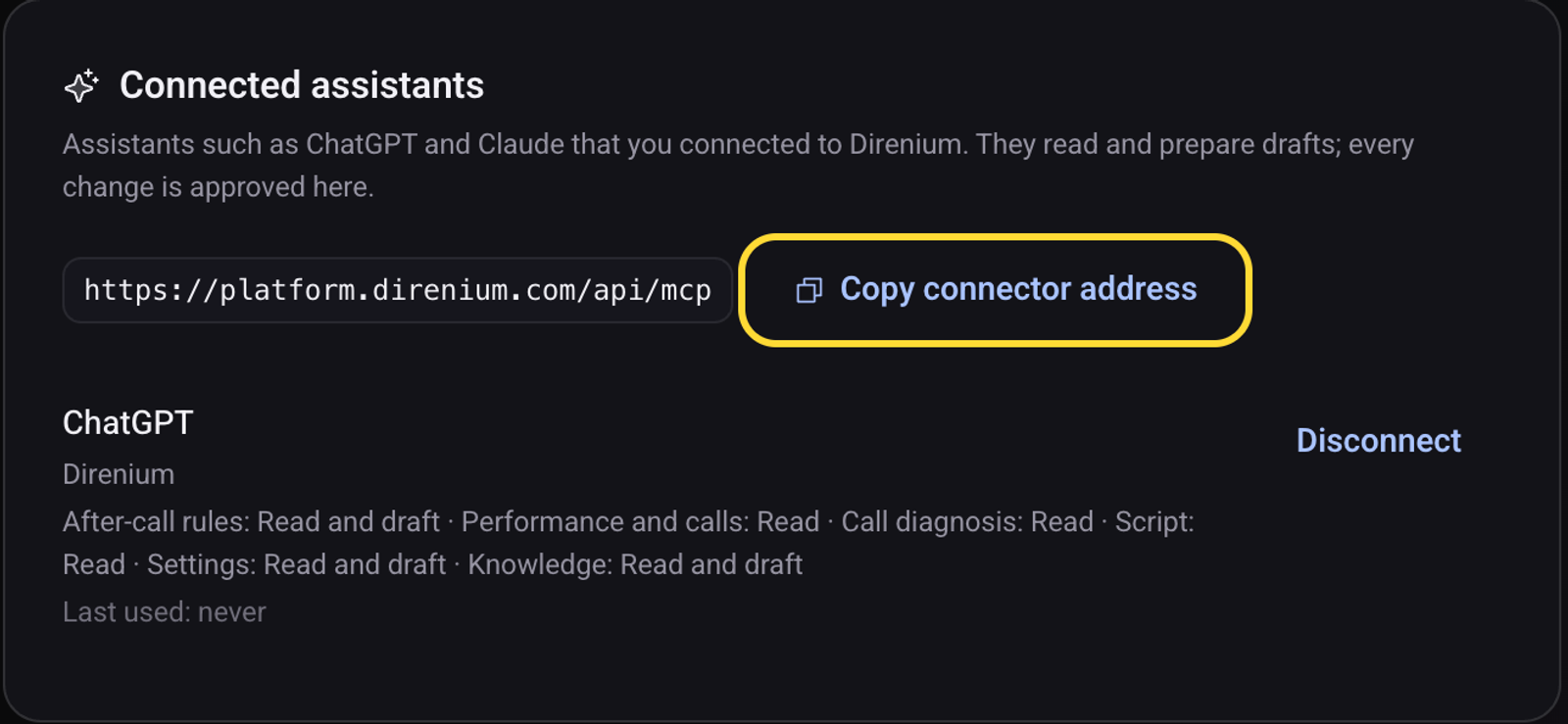
The assistant answers from Direnium, and the connection appears under "Connected assistants" on your account page.
How do I connect Claude?
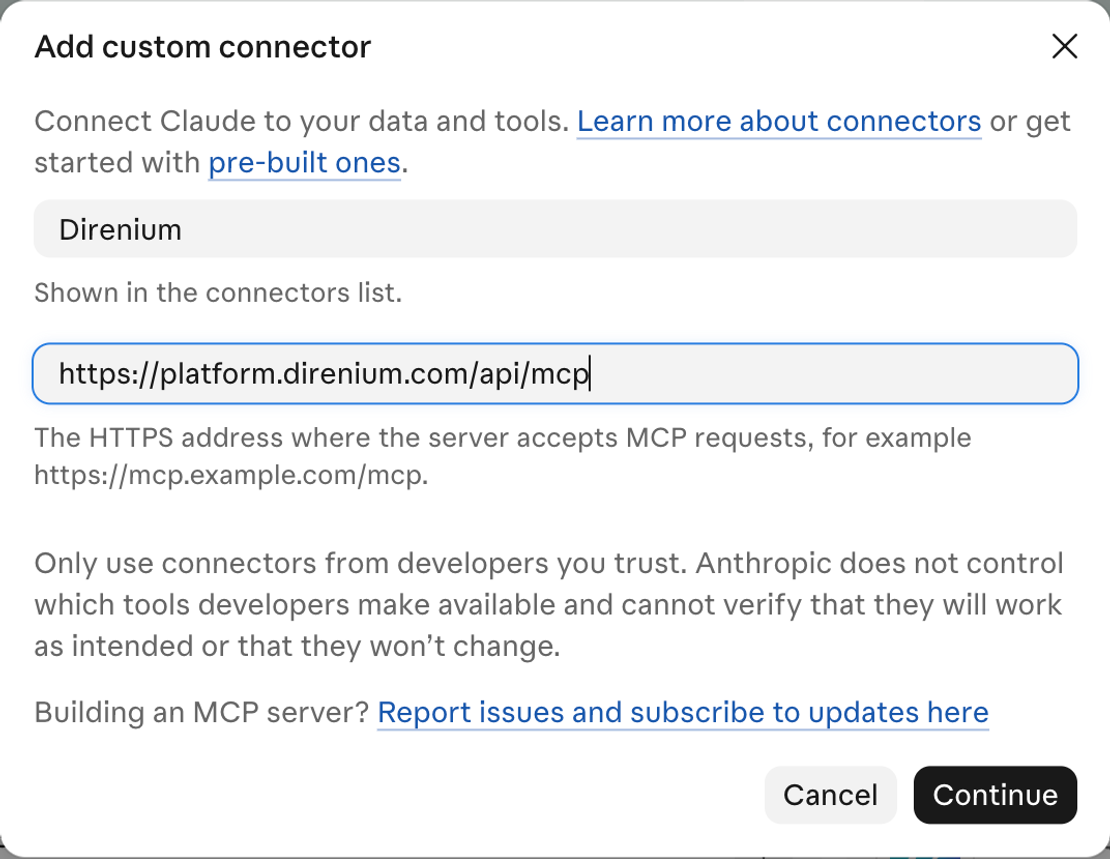
In Claude, open "Customize", choose "Connectors", click "Add" and then "Add custom connector"
In an organization's Claude account, only an admin of the organization can add a connector.
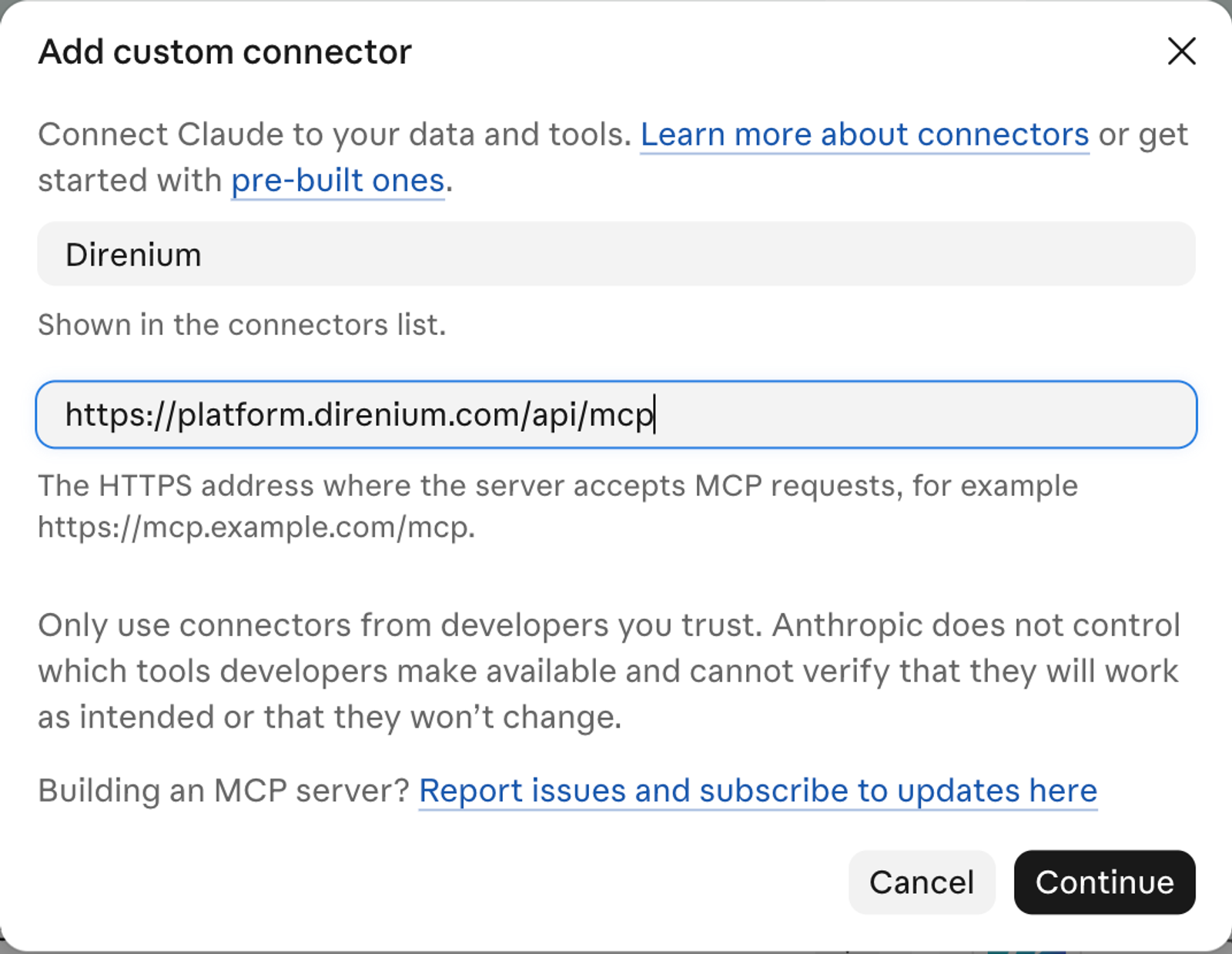
Type "Direnium", paste the connector address and click "Continue"
On Direnium's connect page, tick the accounts, check the level of each area and click "Connect"
How do I approve a change the assistant prepared?
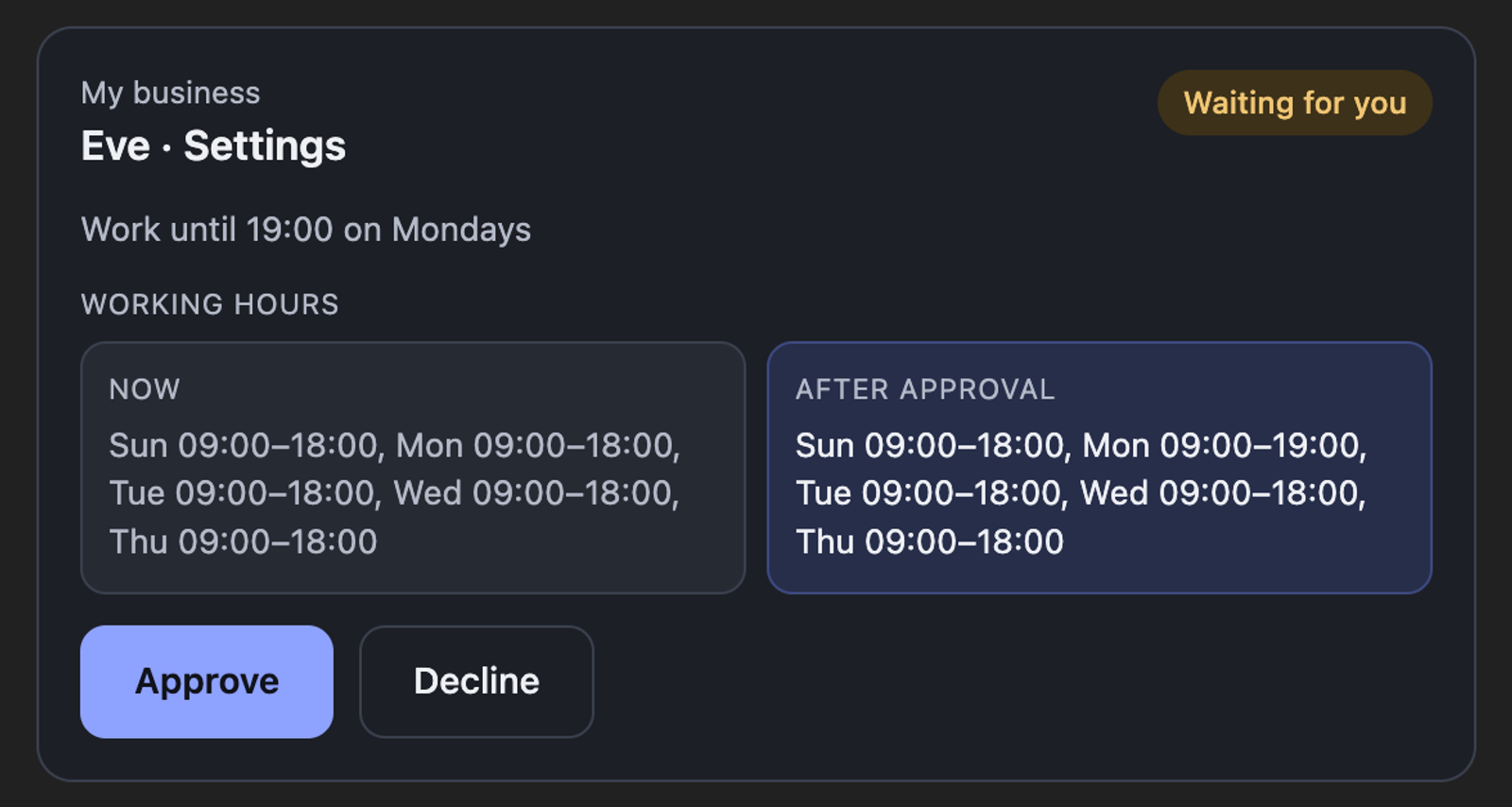
When you ask for a change, for example "Let the agent work until 19:00 on Mondays", the assistant shows a card with the change in the chat.
On the card, compare "Now" with "After approval"
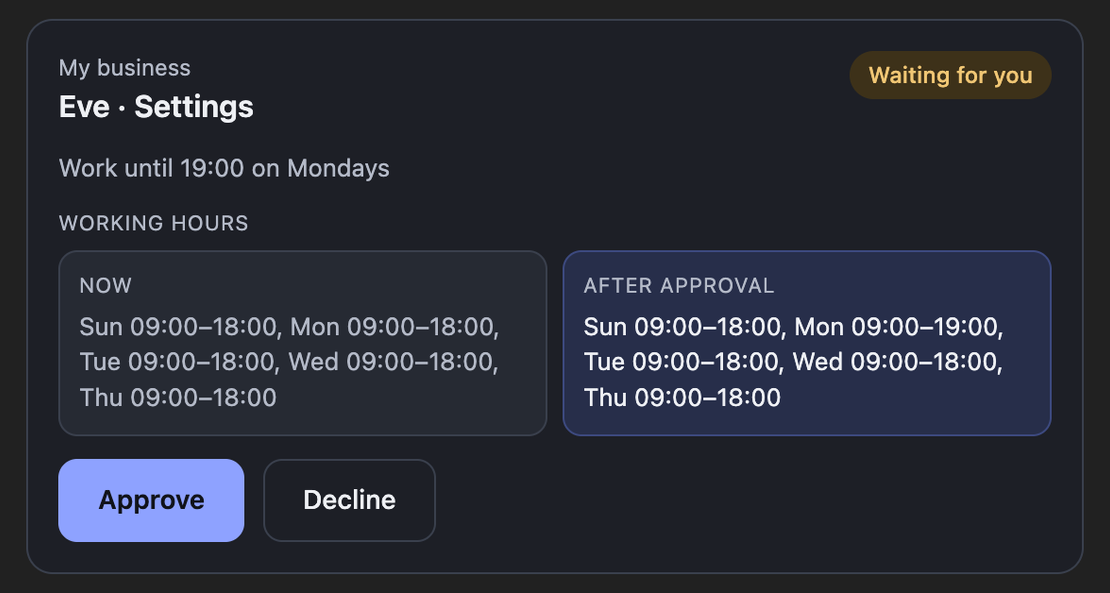
Click "Approve", or "Decline" if the change is wrong
After you approve, the card shows "Applied" at the top and the change is live from the next call. To go back to how it was, click "Undo" on the card within 24 hours.
To disconnect an assistant, click "Disconnect" next to it under "Connected assistants" on your account page. Its access stops at once.
See also: How to set calling hours and holidays, How to update your CRM after a call, How to keep your account secure.