
How to turn on an agent on WhatsApp
The agent answers customers who write to your WhatsApp Business number, using the same script and knowledge you gave it. When a person is needed, the chat moves to you.
On the agent's page click "Configure", then "Channels"
Turn on the "WhatsApp" switch and click "Save changes"

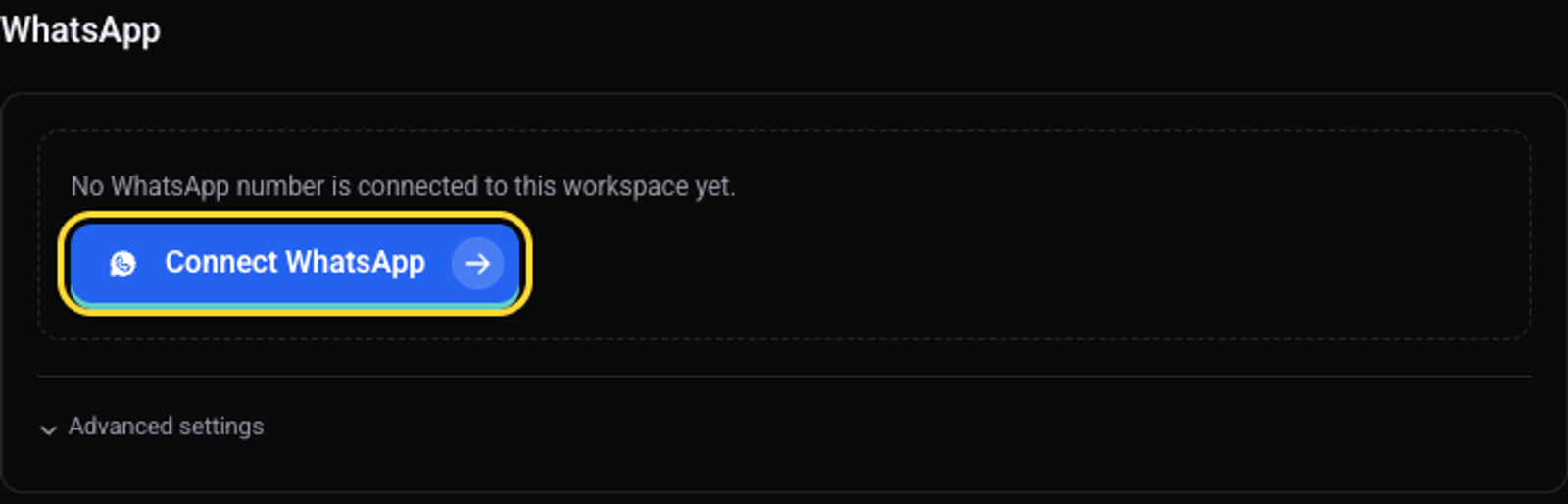
If no number is connected yet, click "Connect WhatsApp"
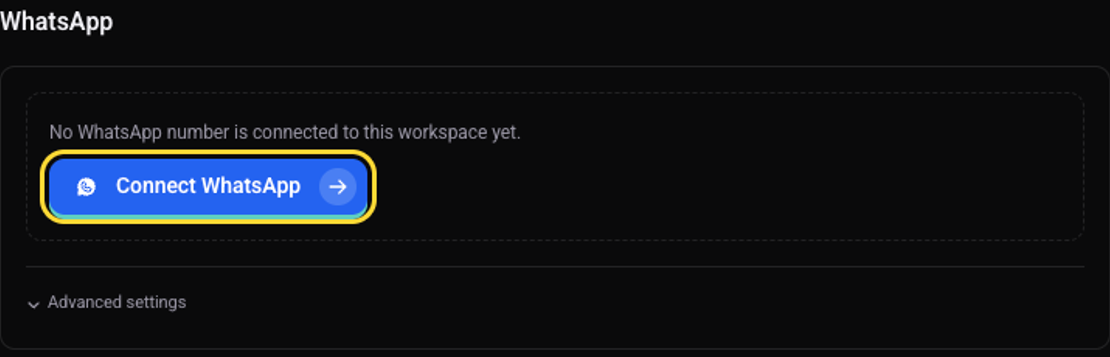
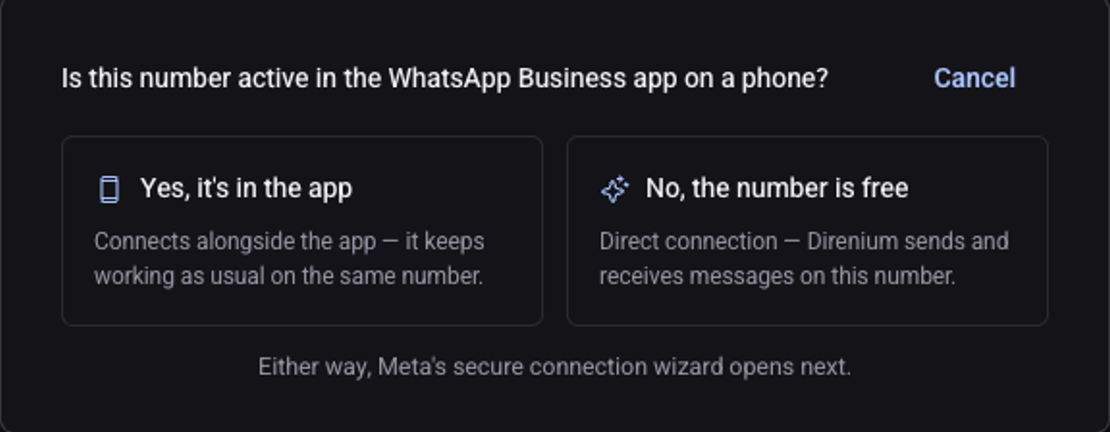
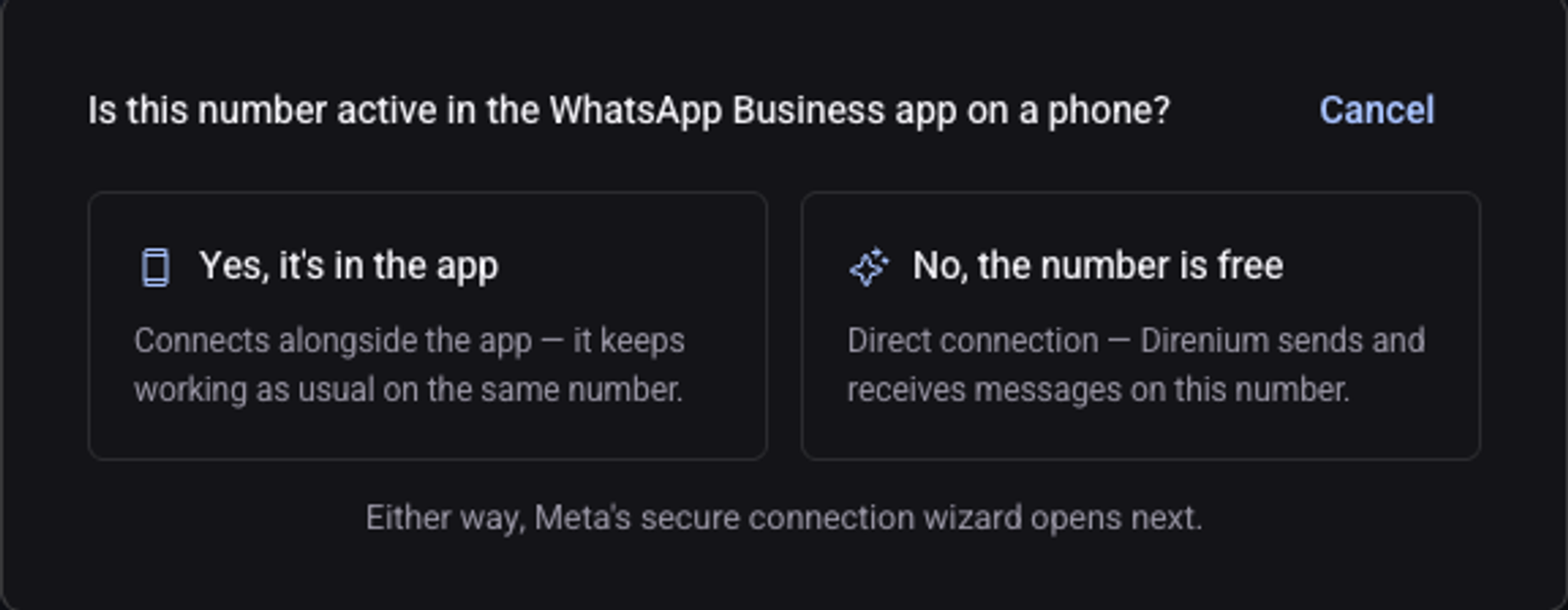
Click "Connect WhatsApp" and answer whether the number is active in the WhatsApp Business app
Choose "Yes, it's in the app" if you keep working from the app on your phone, or "No, the number is free" if the number is not in use. Meta's connection wizard opens: go through to the last screen and click Finish, without closing the window. At the end you see "WhatsApp Business account connected successfully."
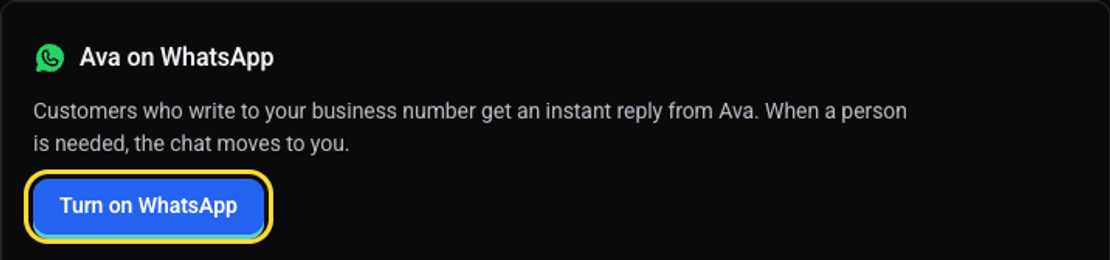
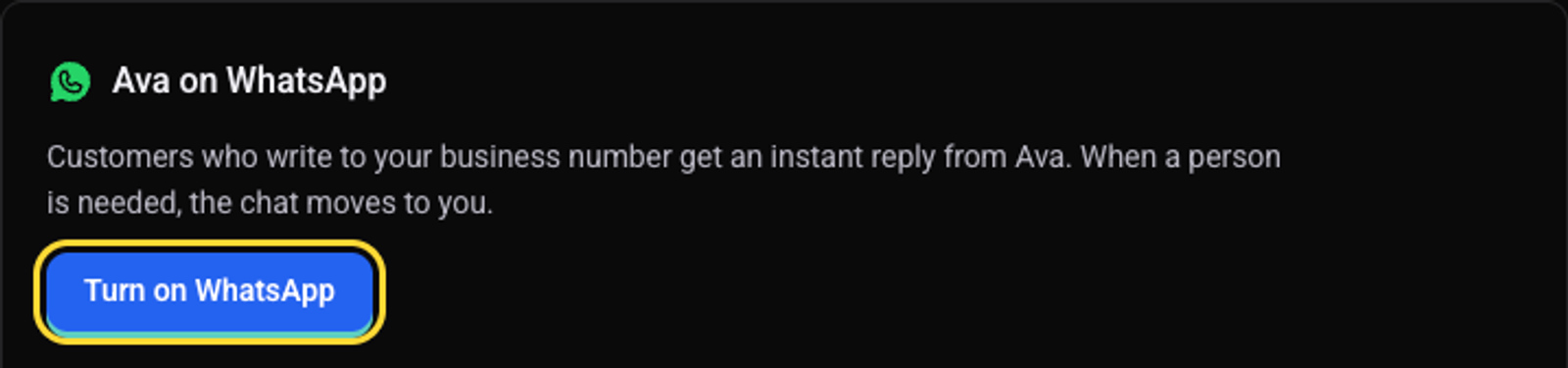
Go back to the agent's settings, open "WhatsApp" and click "Turn on WhatsApp"
If your plan already includes a WhatsApp agent, you see a question about which number the agent answers instead of this button. Pick the number, click the button next to it, and skip to the last step.
Pick a number and a starting message pack, then click "Confirm and pay"
The screen shows the monthly charge for WhatsApp on this agent and the pack price before you pay. Tick automatic top-up so the agent doesn't stop when messages run out. After payment you're back in the settings and see that WhatsApp is on.
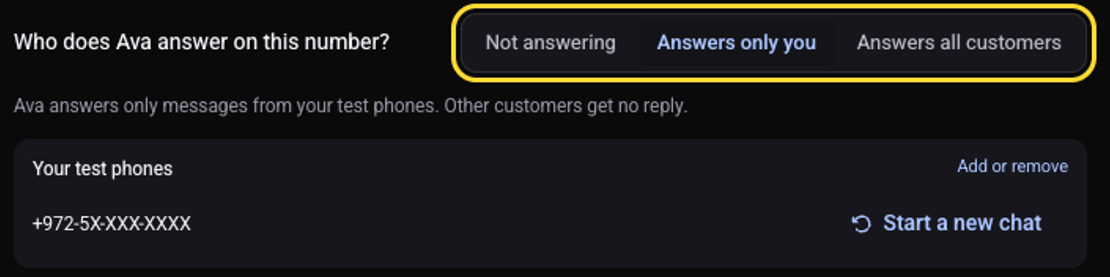
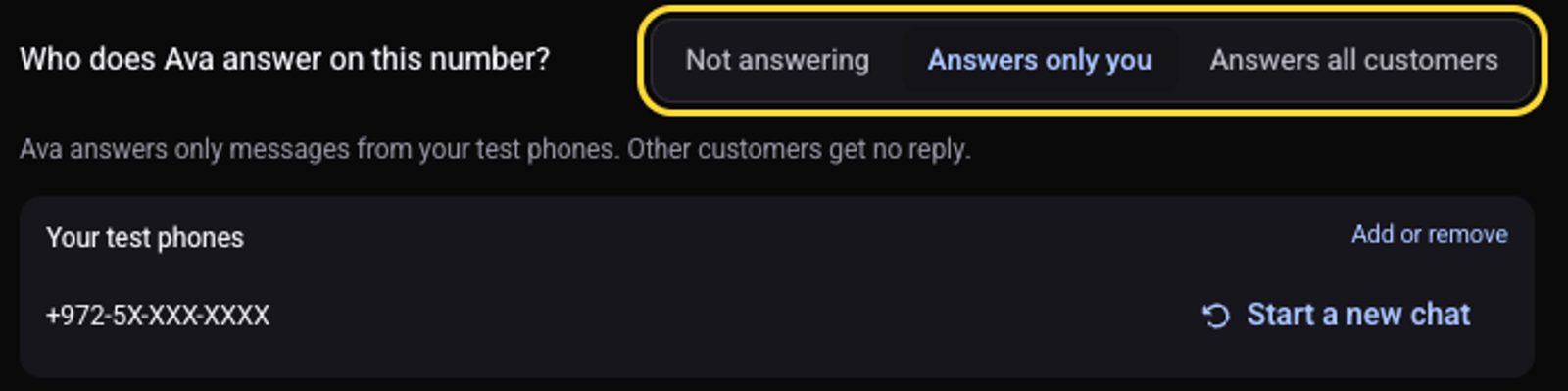
Choose "Answers only you", message the agent from your phone, then choose "Answers all customers"
With "Answers only you" the agent replies only to the phones in "Test numbers" under "Calls & Messages". "Start a new chat" resets a test phone's conversation. Once you confirm, "Answers all customers" shows next to the agent's name.

What if the Meta connection didn't finish?
- The window closed before the end: click "Connect WhatsApp" again and go through to the last screen.
- You started on your phone: click "Copy link", open it on a computer and connect from there. Keep the phone nearby to approve in the app.
- Meta returned an error with a code: try again. If it happens again, contact support and quote the code.
- You see "Finishing the connection alongside the app": this usually takes a few minutes, and the screen updates by itself.
What happens when messages run out?
The message balance shows next to the agent's name. When it's empty, the agent finishes open chats and sends new customers a short holding reply until you top up. Click "Top up", then in the "Message balance" card pick a pack or turn on "Auto top-up".
To stop, choose "Not answering" or click "Unlink from number". Once unlinked, the monthly WhatsApp charge stops.